Managing Git Repositories in AtScale
AtScale admins can manage the Git repositories connected to your AtScale instance from the Workspace panel.
To perform these workflows, you must have the repository_project_manage role assigned in the Identity Broker.
Add a new repository to AtScale
To add a new Git repository to AtScale:
-
In Design Center, open the Workspace panel.
-
Click the three dot icon at the top of the panel and click Add Repo.
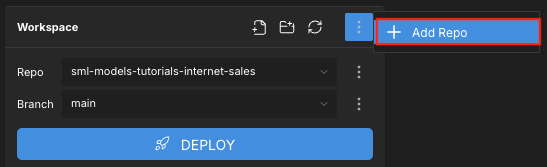
The Add Repo panel opens.
-
In the Add Repo panel, complete the following fields:
-
Repo Name: Enter a name for the repository to use within AtScale.
-
URL: Enter the URL for the repository. For instructions on obtaining the correct URL for your Git provider, see Obtain the URL for your repository below.
-
Visible Branches Pattern: Optional. Determines which branches in the repository are visible to Design Center users.
Enter a regular expression to filter the branches. You can include multiple patterns separated by commas. For example,
^release/.*, ^(main|develop)$.Branches that match the pattern will be visible. If no branches match, only the default branch will be visible.
NoteThe default branch is always visible and cannot be hidden.
-
-
Click Add Repo.
Obtain the URL for your repository
To add a repository to AtScale, you need its URL. How you obtain this depends on your Git provider.
GitHub
- Log in to GitHub and navigate to the repository you want to add to AtScale.
- Click Code.
- On the Local > HTTPS tab, copy the URL.
Microsoft Azure DevOps
- In your browser, open the default branch of the repository you want to add to AtScale.
- Copy the URL of the page.
Do not use the Clone button, as this generates a personalized URL.
Atlassian Bitbucket
-
Open the repository in Bitbucket and click Clone > HTTPS. This gives you a command similar to the following:
git clone https://<username>@bitbucket.org/<workspace>/<repo>.git -
Copy the command, then remove
git clonefrom the beginning and<username>@from the URL. The new URL should have the following format:https://bitbucket.org/<workspace>/<repo>.git
GitLab
- Log in to GitLab and navigate to the repository you want to add to AtScale.
- Click Code and copy the URL for Clone with HTTPS.
Edit a repository
You can edit the names and URLs for your repositories from the Workspace panel.
To edit an existing Git repository:
- In Design Center, open the Workspace panel.
- In the Repo field, switch to the repository you want to edit.
- Click the three dot icon next to the Repo field and select Edit. The Edit Repo panel appears.
- Edit the Repo Name, URL, and Visible Branches Pattern as needed, then click Save.
Remove a repository
To remove a repository from AtScale:
- In Design Center, open the Workspace panel.
- In the Repo field, switch to the repository you want to remove.
- Click the three dot icon next to the Repo field and select Remove.
- In the dialog that appears, click Remove.